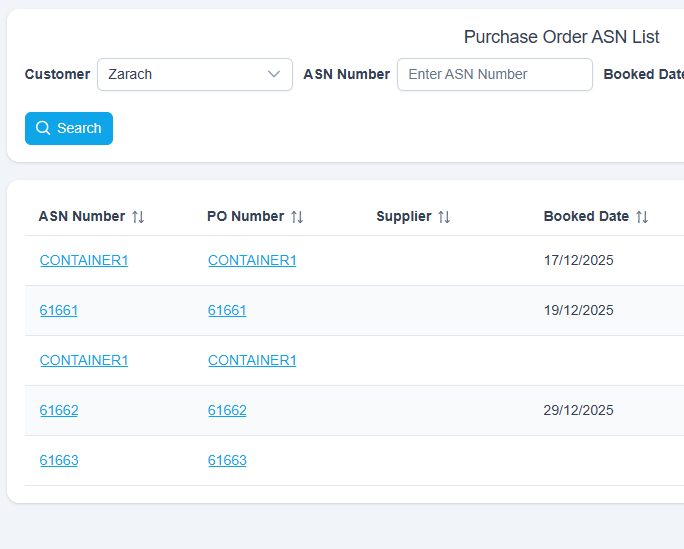
Follow these steps to assign a booked date, time and building to a selected ASN.Navigate to: Data > Purchase Orders > ASN List: Purchase Order ASN List is displayed.
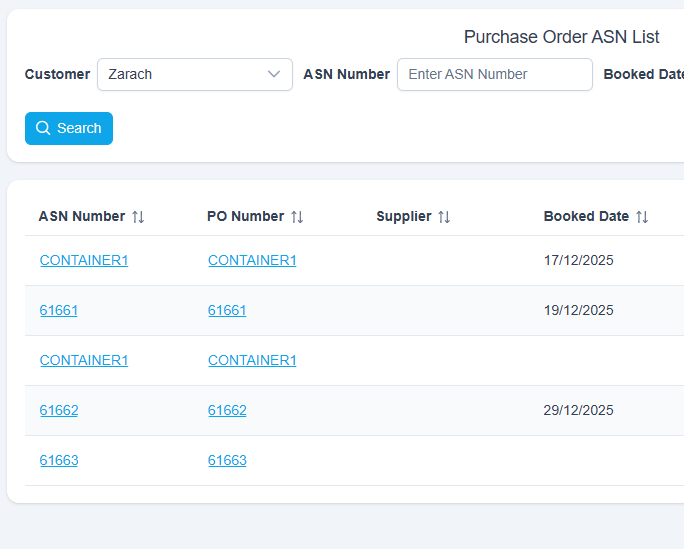
Select Customer: Zarach and click the Search button:
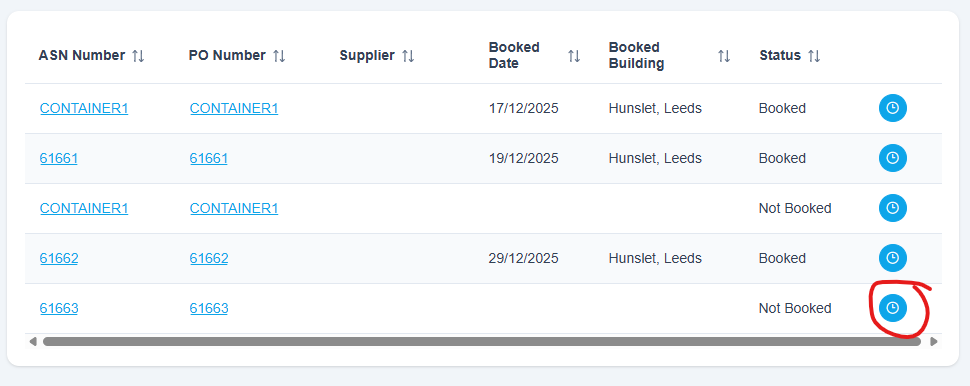
Click the Booking button next to your ASN:
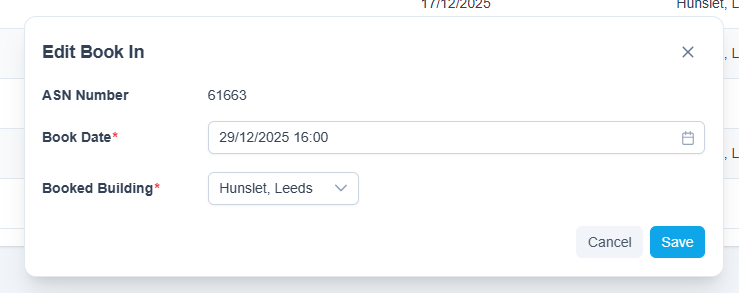
Edit Book In screen is displayed:
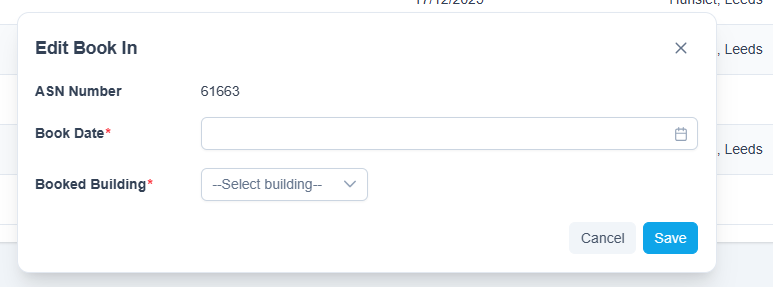
Click the Booked Date field and select today’s date with any time:
Select a Booked Building:
Click the Save button.
Saved message is briefly displayed at the top of the screen.
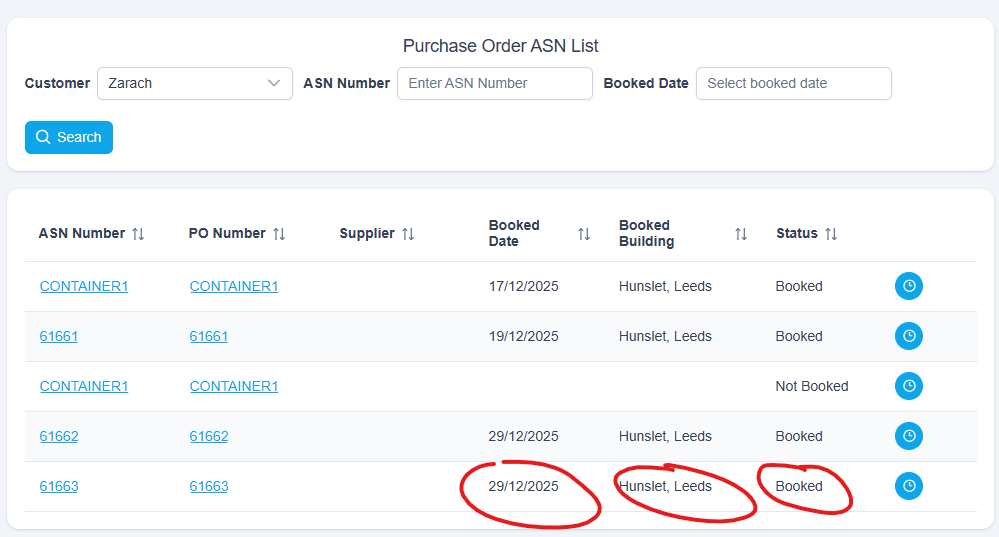
Check the Booked date and Building are correct and that the order Status now says Booked: